Creating a student submitted assignment
Published on: 2022-10-14 by Edufide
This article describes how instructors can create online homework assessments using the Assign2 external tool. Assign2 allows students to capture long-form written work as image files that can be uploaded for instructors mark online using a time-saving interface.
Contents:
Creating Online Homework Assignments
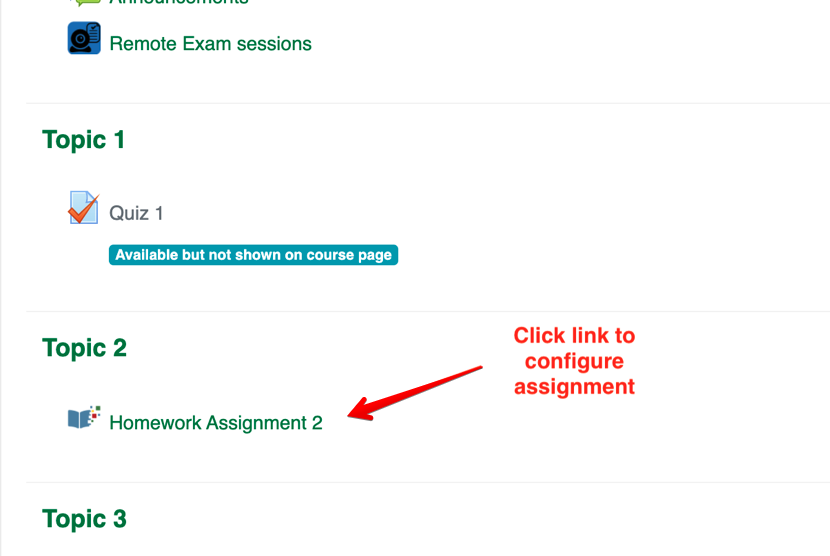
A new Assign2 tool activity must be added to the course for each assignment that will be set up in the course. This process looks different in various learning management systems (LMS). Assign2 usually apprears under External Tools.
Configuring Assignments
Once added to the course, click the tool link to select which of the different assignment types will be used and to configure the details:
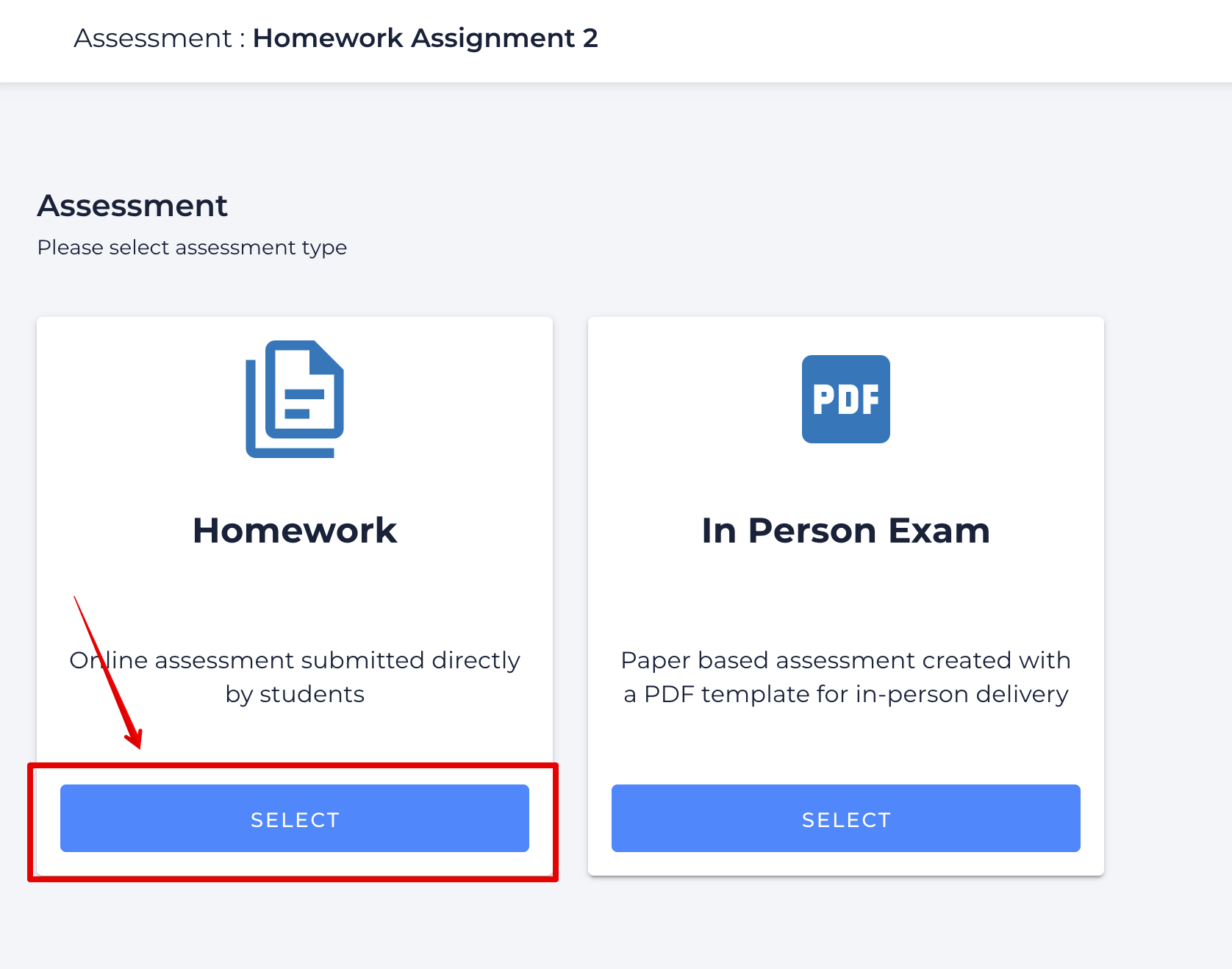
Within the tool, select the Homework option:
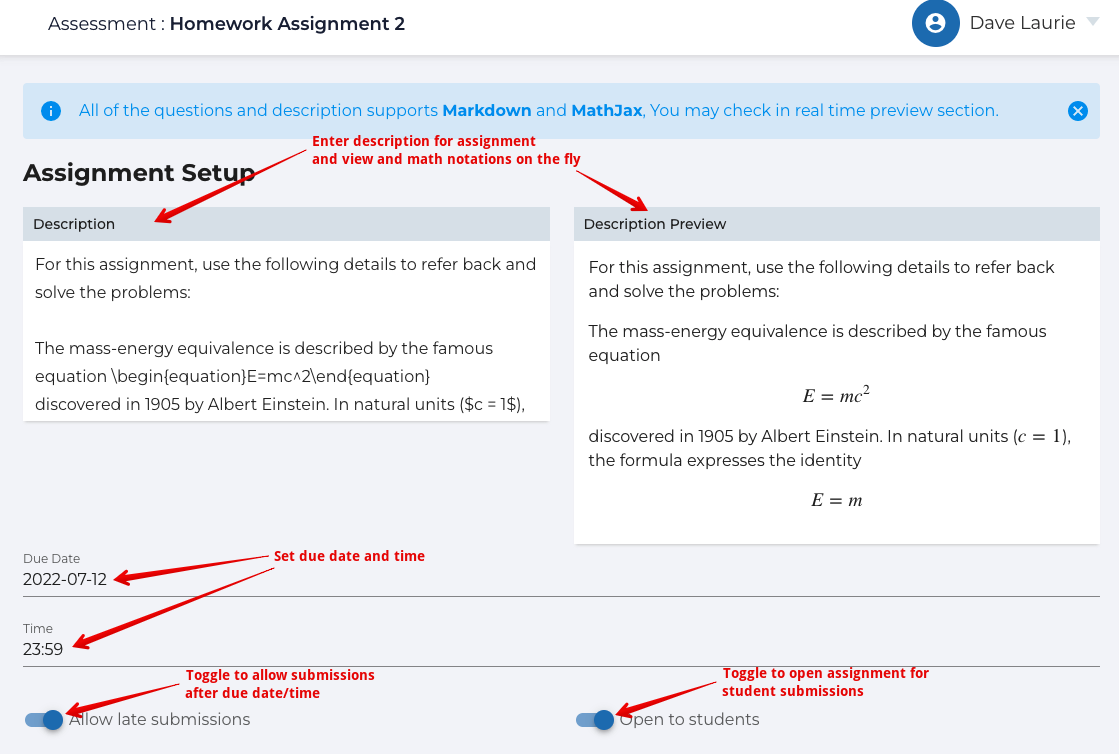
Once the Assessment type is selected, instructors can set up their assignment:
The Description field can add general instructions and/or a long form problem that can be used as the basis of specific questions later on.
The Description Preview on the right hand side will automatically display any TeX notation.
The Due Date and Time set the boundary for submission cut-off.
IMPORTANT: Date and Time is based on universal time. e.g. If an instructor working in Toronto (Eastern time), sets a due date/time for 23:00, students in Mountain Time Zone will see it due at 21:00 instead.
It is possible to toggle Allow late submissions to permit submissions after the cut-off.
Assignments are not accessible by students until the Open to students is toggled on.
Alternatively, AFTER the assessment is created, it is possible to update the settings to set an open date and time for the activity to use it is a summative exam (or a future homework assignment.) This will allow students to access whenever the specified start time is reached.
Notes:
- Once an assessment type is selected and saved, it cannot be changed so a new assignment would need to be added if the wrong option was chosen.
Creating Questions
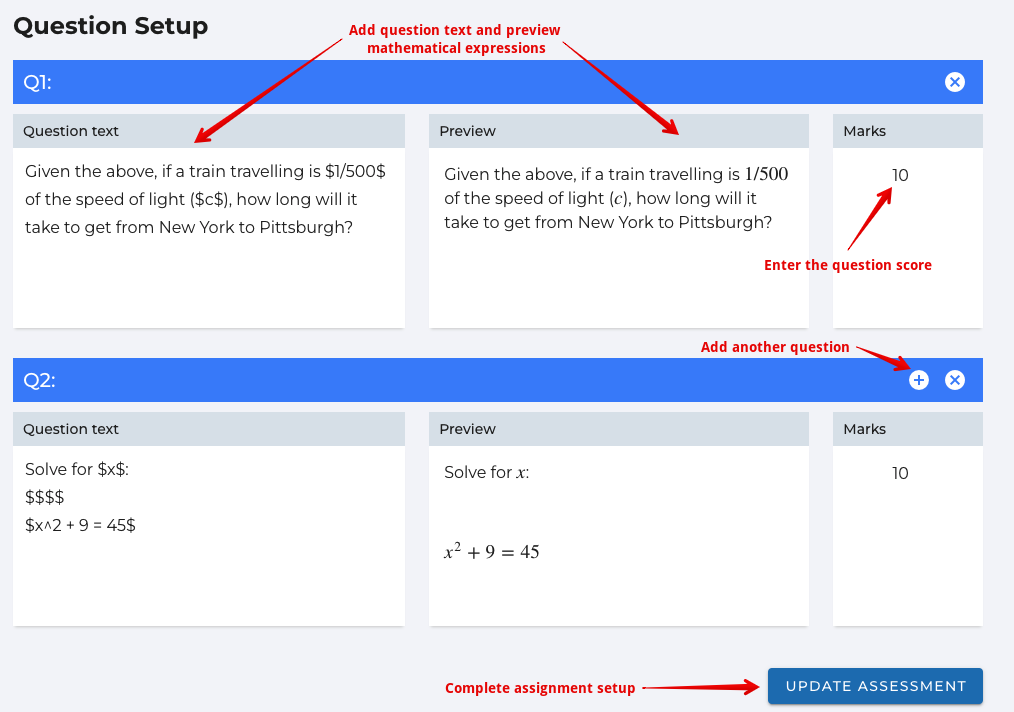
Individual questions are added under Question Setup. The question test is added on the left with any accompanying mathematical notation appearing in the preview on the right. The combined scores of all questions must match the total set for the grade of the external tool activity settings (see above).
Once all questions have been added, click Update Assessment to complete the setup. It is also possible to configure the Assign2 tool as a submission device only (and deliver assignments to students as linked files through the LMS course). In this case, the only configuration required would be the due date/time and setting the required number of questions and scores.
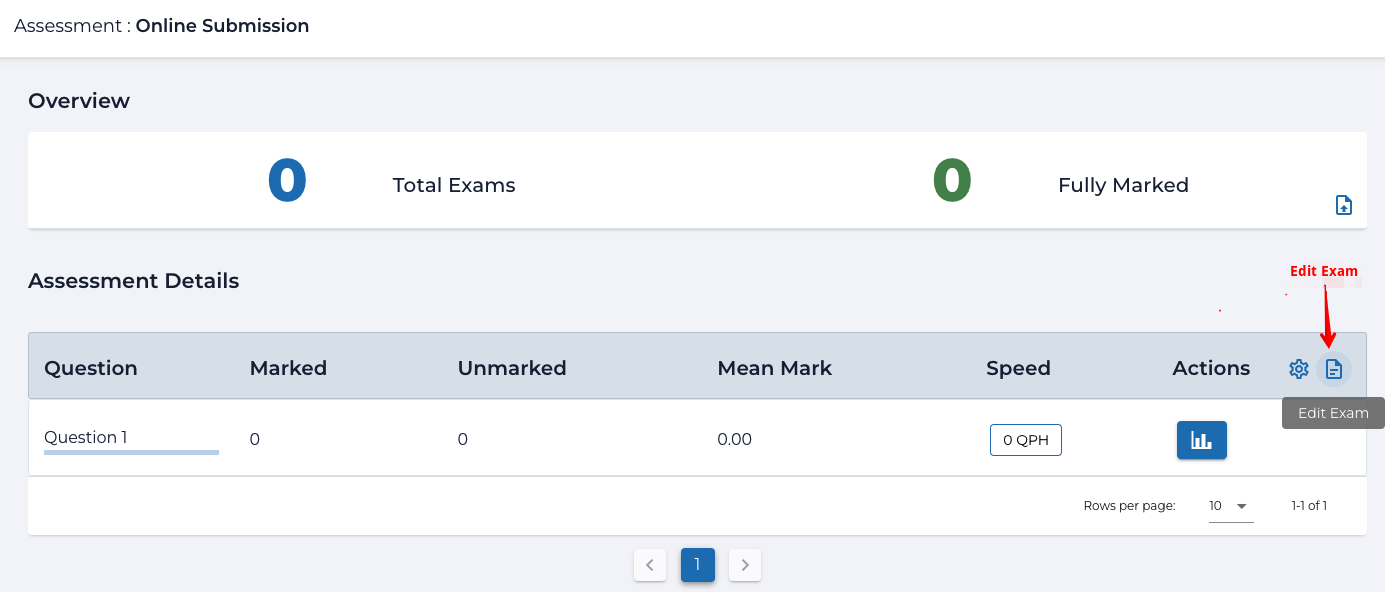
To access and update questions after creating an assessment, instructors should click the Edit Exam option on the dashboard:
Navigating Assign2 Assessments
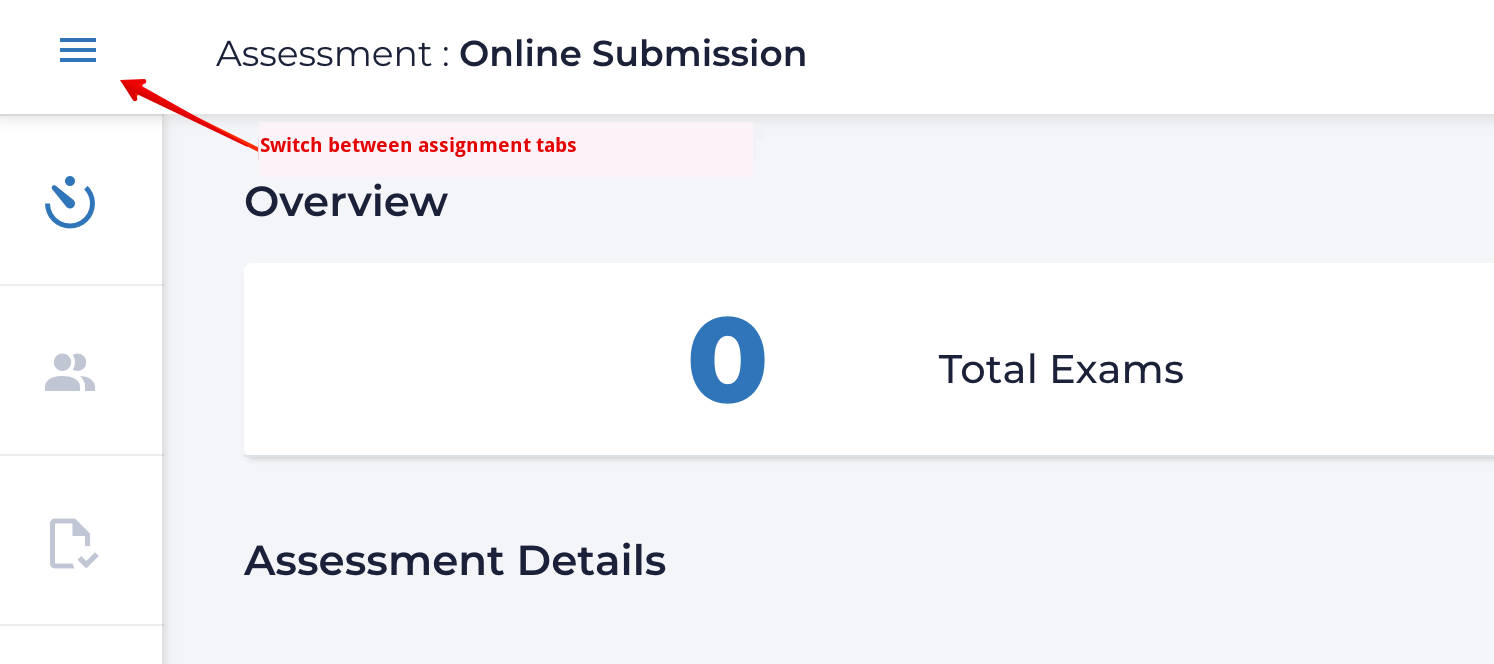
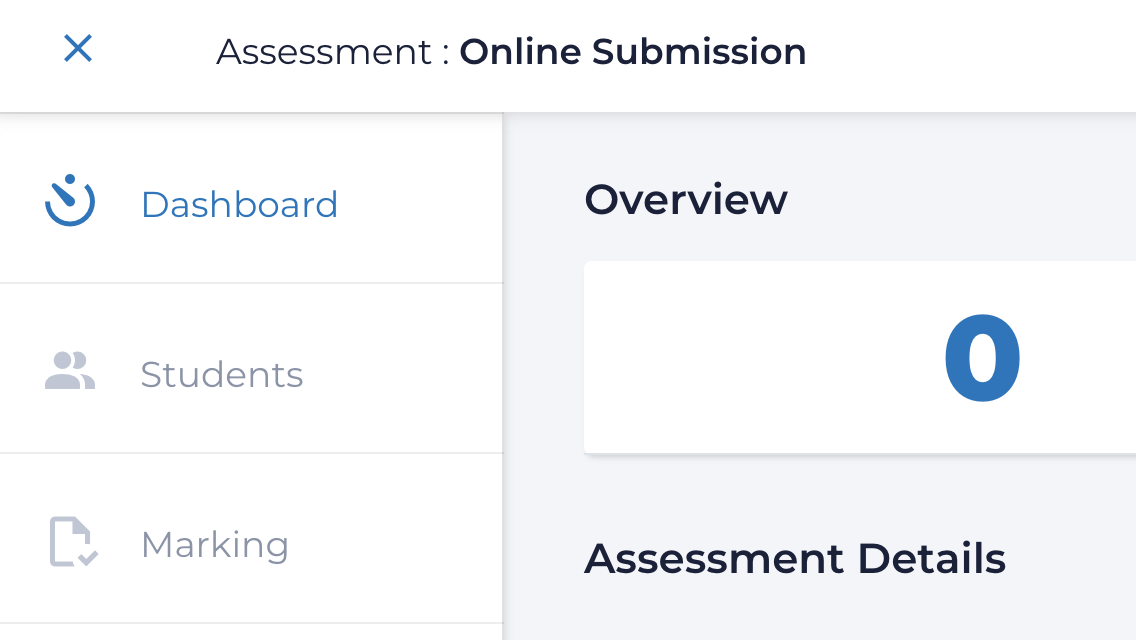
Once an assignment configuration and questions are saved, instructors can navigate within the assessment using 3 different tabs: Students, Marking, or Dashboard. Users can switch between tabs from the top left nav drawer:
Students Tab
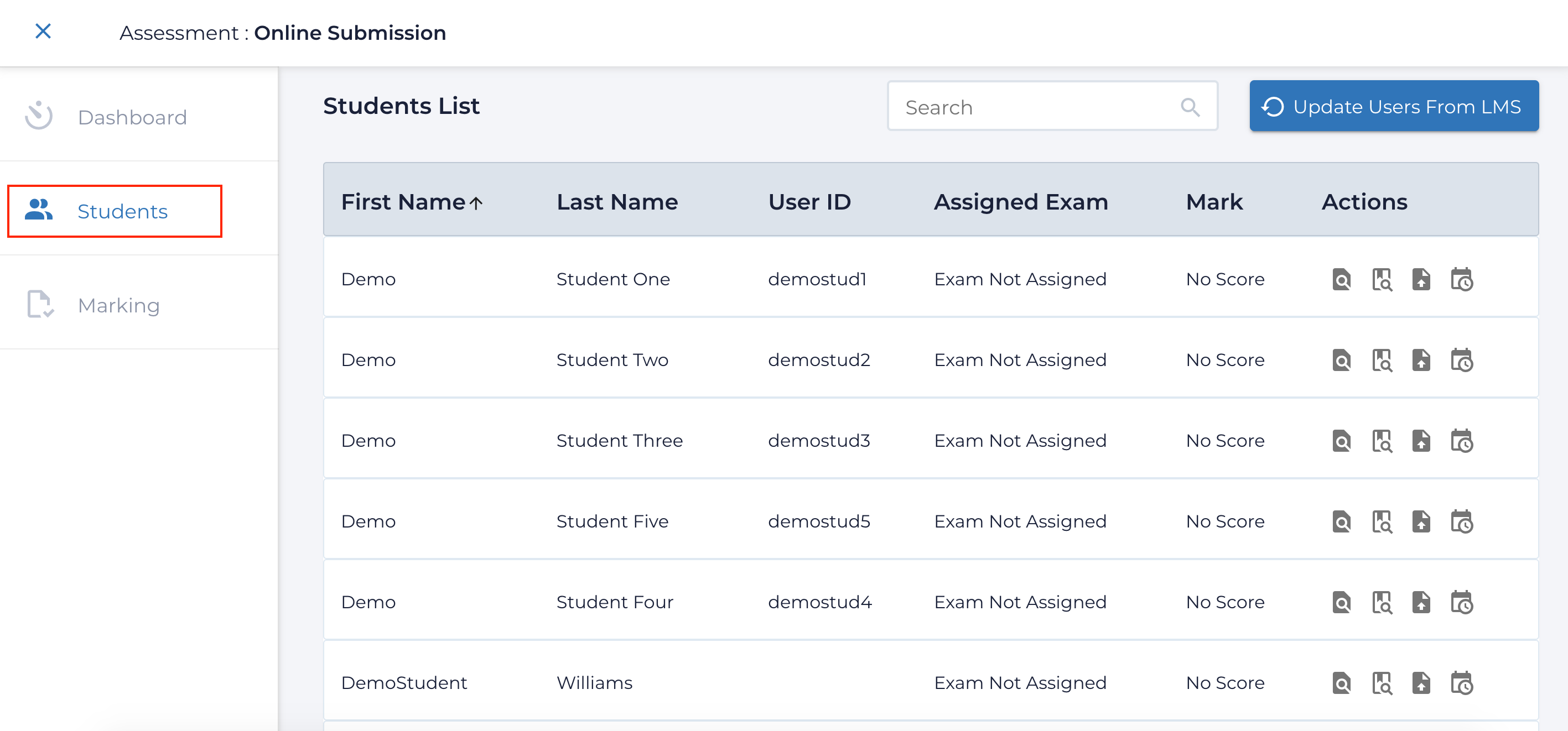
The Students tab will display the students information as seen below:
When delivering assignments to students, instructors can provide them the link to a student-facing guide for using the tool: Submitting Assignment Using Assign2 (For Students) . Students will access their assignment submission area by clicking the Assign2 link from the LMS course and begin adding submissions when assignments are set to Open for students. Students will complete solutions to the problems on paper, photograph them, and upload the photo(s)/file(s) for each question using their desktop, laptop, or mobile device in any of the accepted image file types: PNG, JPG, and PDF files. File submissions are automatically re-sized and rotated on submission.
Marking Tab
Once students have completed assignments, work can be graded by clicking the Marking tab. The grading interface allows multiple graders to score and markup either specific questions across all student submissions or entire student assignments at a time. Grades are entered at the top left either on a keyboard or with a mobile/tablet friendly keypad:
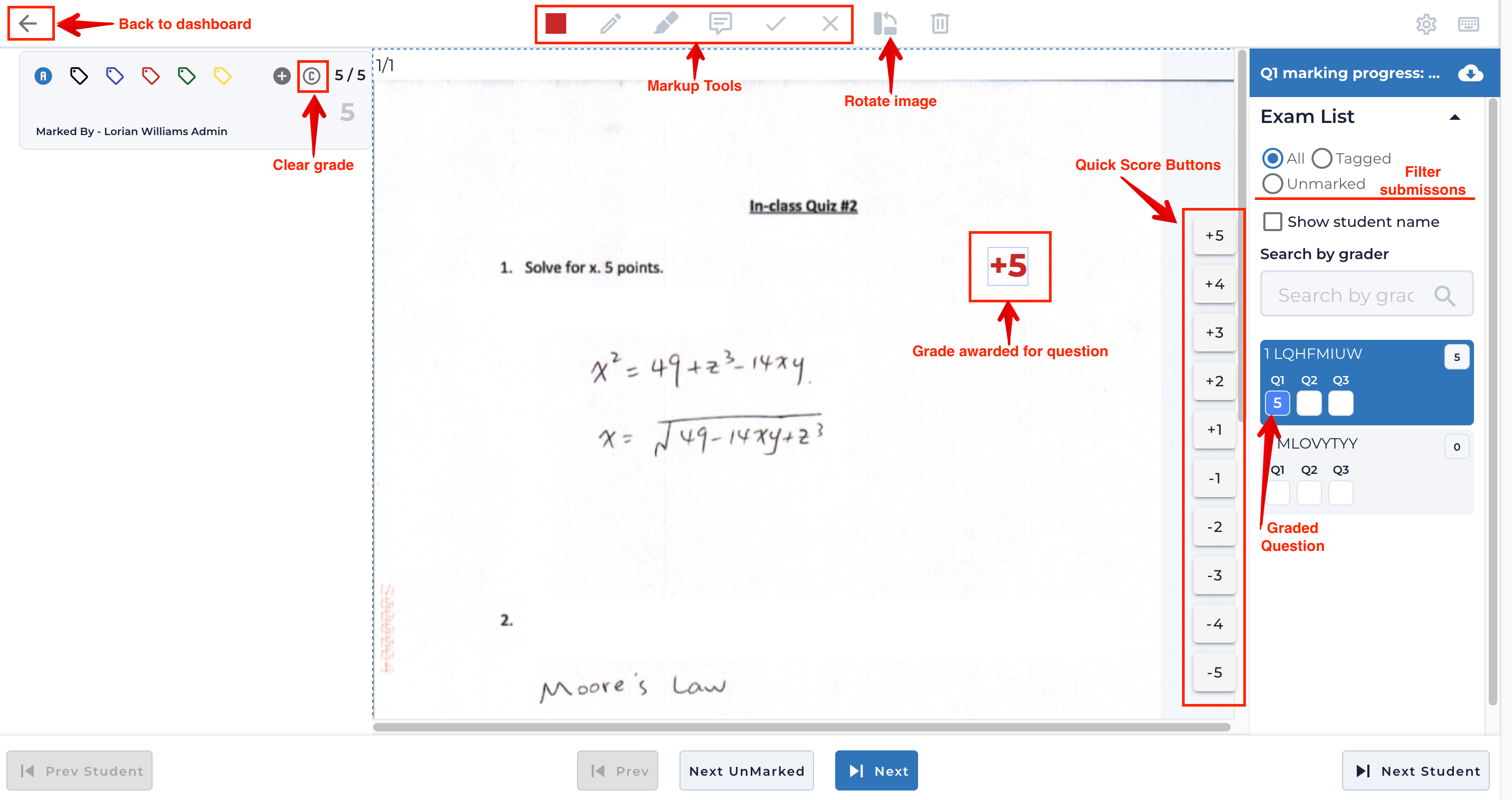
The grading overlay tools offer a number of time-saving workflows to grade assessments rapidly including the ability to create custom keyboard shortcuts. These features are covered in detail in Marking Student Submissions in Assign2.
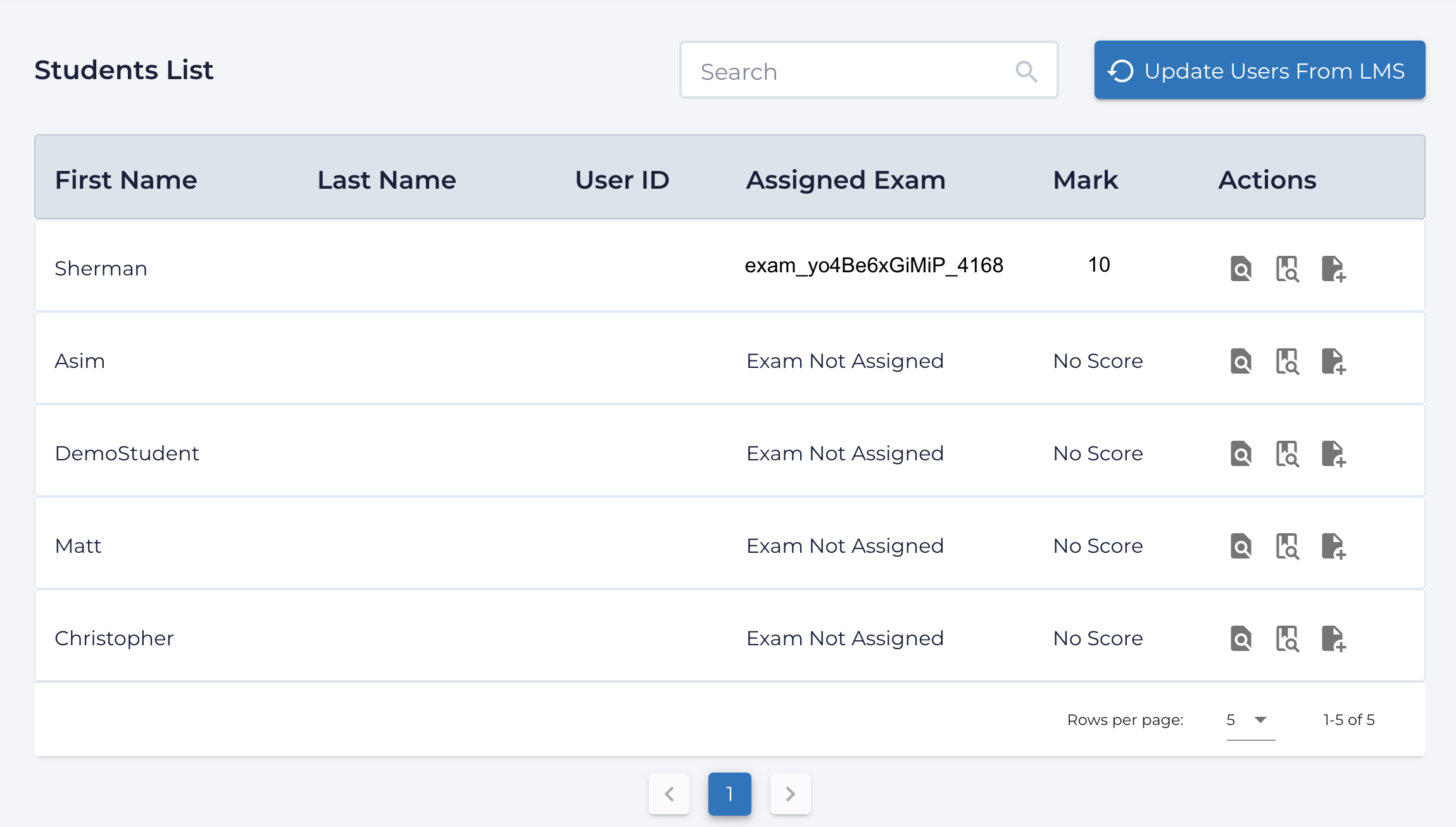
Once grades have been entered, scores are reflected on the the students tab along with links to the student’s submission:
Dashboard Tab
After grading, the assignment Dashboard shows the overall grading summary and per question marking progress and statistics:
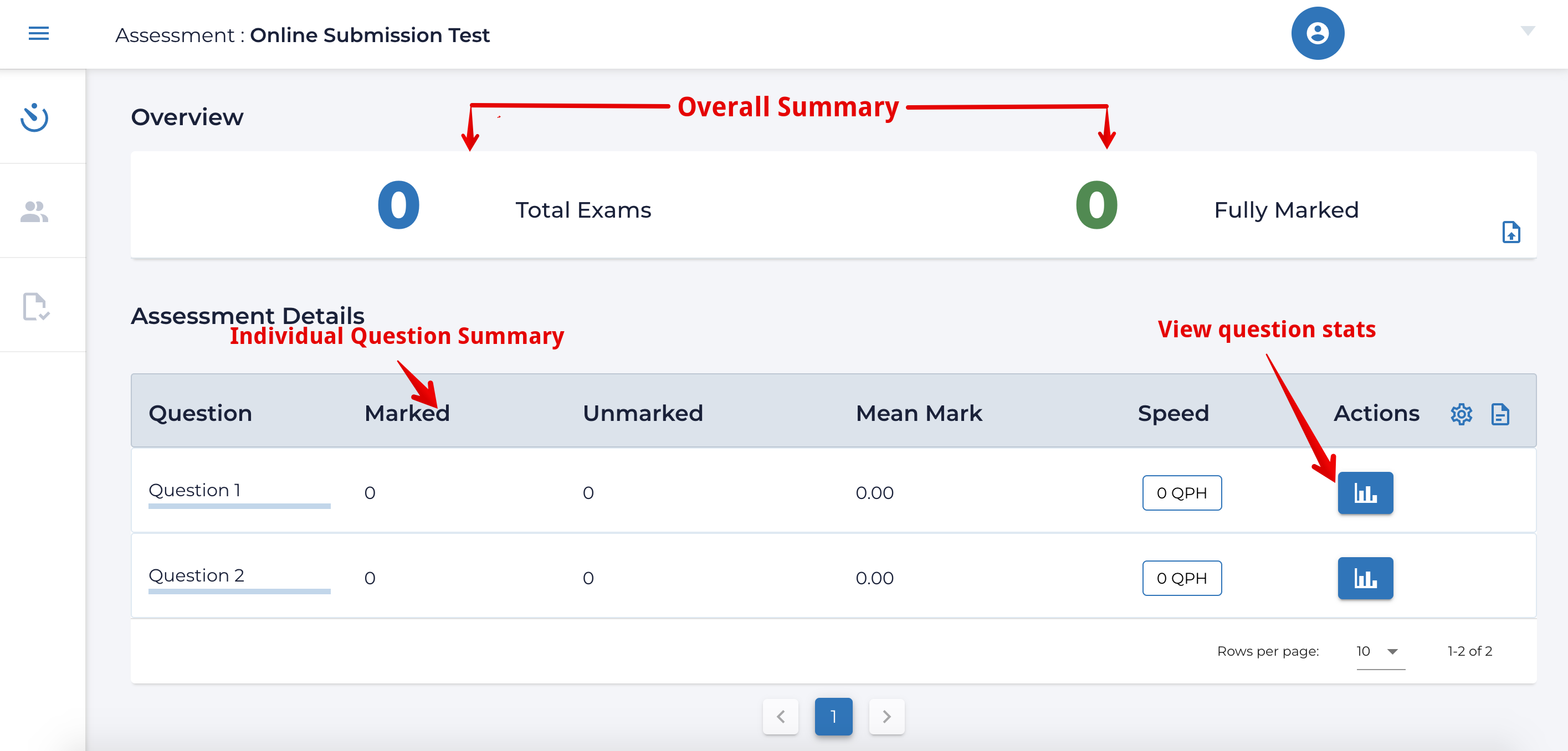
The Dashboard action menu near the middle right also allows instructors to refresh the questions grading statistics, make changes to the assignment settings, and push grades into the LMS.