Submitting an assignment on Assign2
Published on: 2022-10-20 by Edufide
This guide will walk you through the process of submitting your assignment using Assign2. It’s designed to be simple and works on desktop, laptop, or mobile devices.
Accessing the Assignment
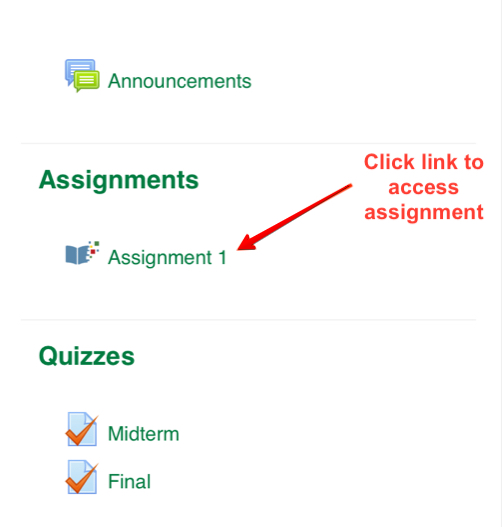
To get started, click on the assignment link provided by your instructor in your course’s Learning Management System (LMS), such as Canvas or Moodle. This will open the Assign2 interface.
You will see the assignment details, including the due date and the questions you need to answer.
Uploading Your Work
For each question, you will need to upload your answer. You can do this in a few ways:
- Take a Photo: If you’re on a mobile device, you can use your camera to take a photo of your handwritten work directly.
- Upload a File: You can upload image files (PNG, JPG) or a PDF file from your device. This is great if you’ve already scanned your work or if you’ve typed your answer.
Simply click the ‘Upload’ or ‘Add Submission’ button for the corresponding question and select your file or use your camera. Assign2 will automatically handle resizing and rotating the image.

Finalizing Your Submission
Once you have uploaded your work for all the questions, review your submission to make sure everything looks correct. If you need to replace a file, you can do so before the due date.
There is no ‘final submit’ button. Your latest upload before the deadline is considered your submission. After the deadline, you will no longer be able to change your files unless your instructor has granted you an extension.