Submitting Coding Assignments Using Assign2 (For Students)
Published on: 2023-05-16 by Edufide
This article describes how students can use Assign2 to submit Coding Assignments, view real-time feedback from an autograder, and review final grades and inline comments from their instructor.
Contents:
Submitting Your Assignment
Coding Assignments require you to submit a .zip file containing your code. The specific contents and structure of this zip file will be provided by your instructor. The submission process involves uploading one or more “attempts” and then finalizing your submission.
Click on the Assign2 activity in your course to open the assignment page.
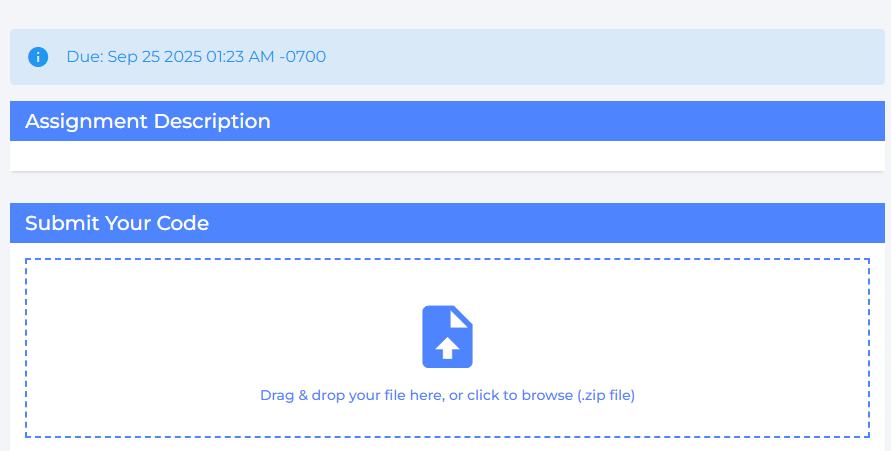
In the “Submit Your Code” section, drag and drop your .zip file into the upload area, or click to browse for the file on your device.
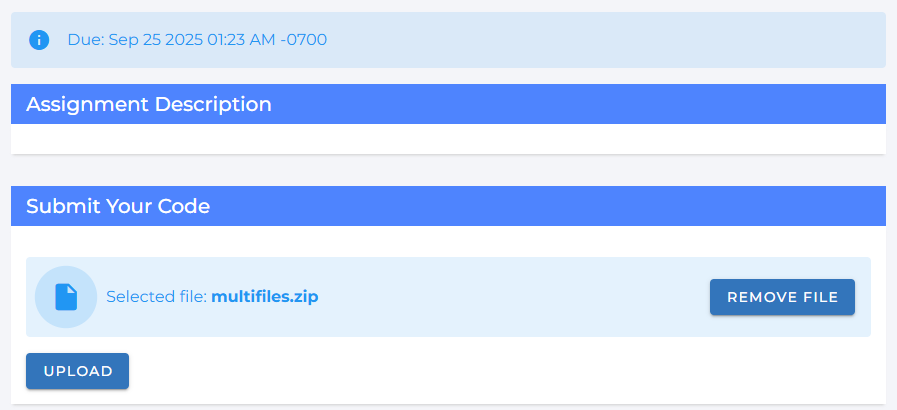
Once your file is selected, click the Upload button. This sends your code to the autograder as an “attempt.” It does not finalize your submission.
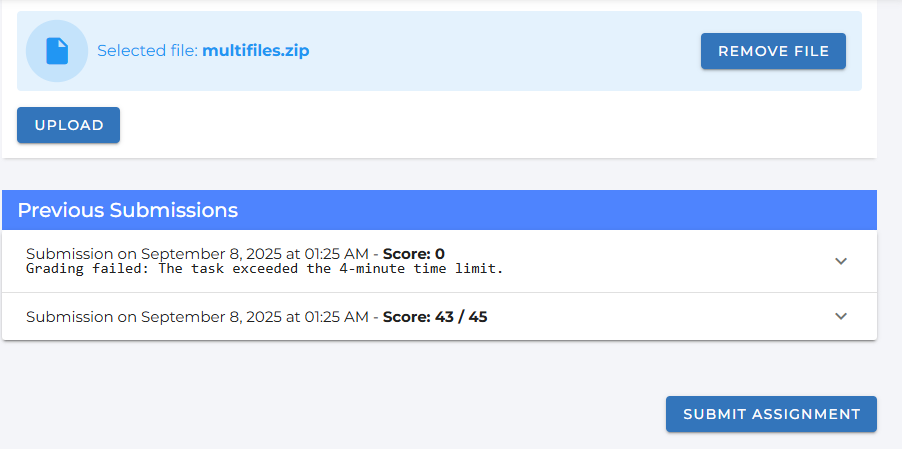
After the upload is complete, your attempt will appear in the “Previous Submissions” section. You can upload multiple attempts to see how your code scores against the tests.
When you are satisfied with an attempt, click the Submit Assignment button at the bottom of the page. This locks in your most recent upload as your final submission for grading. Note: This button will only be active after you have uploaded at least one attempt.
Viewing Autograder Feedback
Each time you upload an attempt, the autograder runs a series of tests against your code. You can view the results to track your progress.
Look for your upload in the “Previous Submissions” list. The autograder can take up to 15 minutes to finish, during which you may see a “Not graded yet” message.
Once grading is complete, the header will update with your total score for that attempt.
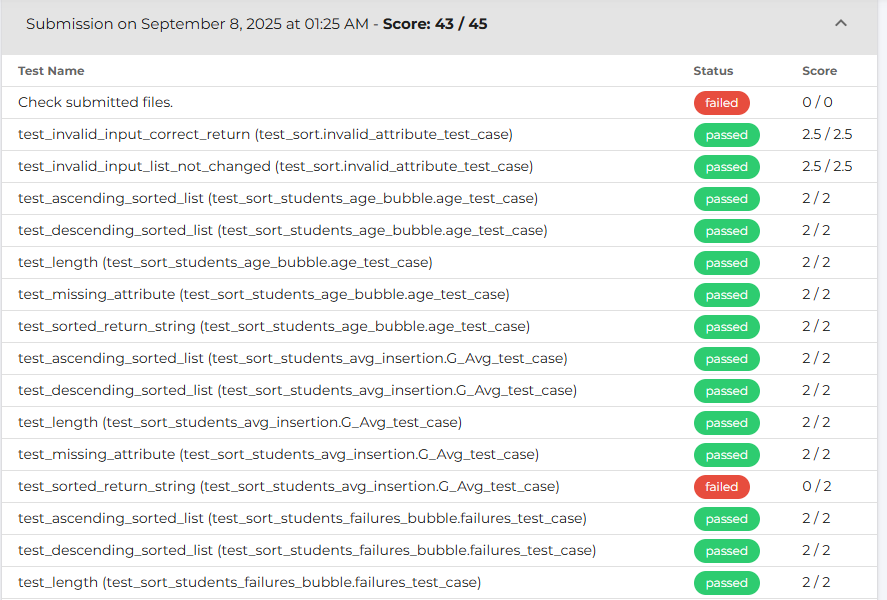
Click on a submission to expand it. Inside, you will find a detailed table breaking down each test case, its status (passed/failed), and the score you received. This allows you to identify which parts of your code need more work.
Viewing Final Grades and Inline Comments
After the due date and once your instructor has finished grading, the assignment will be returned to you. The submission page will then transform into a feedback viewer.
A “Graded Submission & Feedback” section will appear at the top of the page. It includes a summary table with your final Autograded Score, Manual Feedback Score, and Total Score.
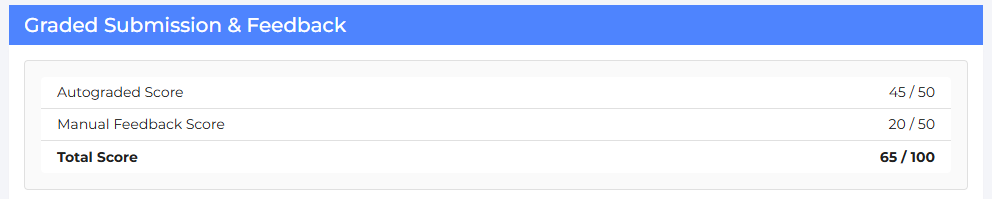
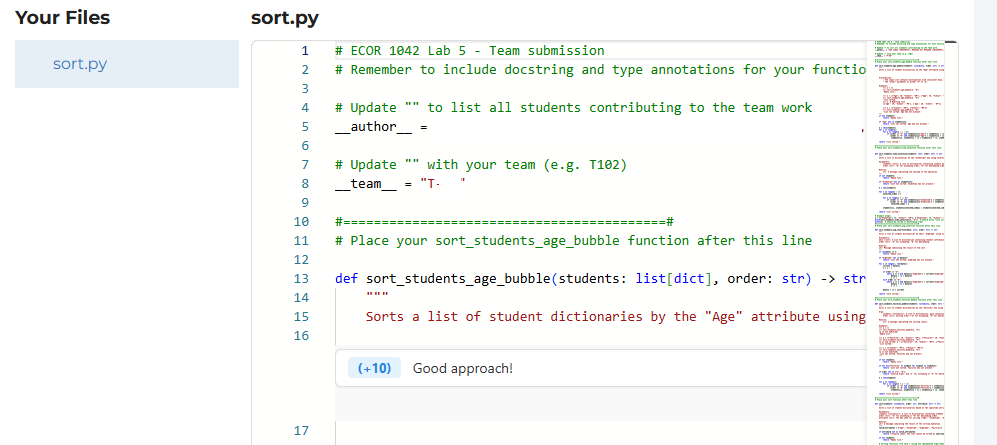
Below the score summary, you will find a code viewer. On the left is a file tree of your submitted code. Click on any file to view its contents in the editor on the right.
Your instructor may leave comments and feedback directly on specific lines of your code. These comments will appear as annotations within the code editor, allowing you to see the feedback in context.
Unsubmitting Your Work
If you have clicked “Submit Assignment” but the due date has not yet passed, you can unsubmit your work to upload a new version.
Click the Unsubmit Assignment button. This will reopen the assignment.
You can now upload new attempts. Remember to click Submit Assignment again to finalize your new submission.