Smart Exam Monitor V2 - For Instructors
Published on: 2023-08-01 by Edufide
This guide provides instructions on how to manage exam sessions in Smart Exam Monitor V2.
Intro to Smart Exam Monitor V2
Smart Exam Monitor V2 is a secure exam proctoring solution that allows instructors to monitor students during exams.
Features:
- Recording of screen and webcam.
- Recordings are stored locally and uploaded asynchronously to the server, mitigating network failures.
- Application runs in a PWA web app and can be installed on personal computers.
- Optionally allows recording with a secondary camera, such as a cellphone.
How it works:
Students access the exam session from the appropriate course in their LMS and are required to install the SEM V2 application. Additionally, students are required to validate their device after installing the application and before starting the exam.
After the exam, instructors can review the videos and flagged events.
Create a New Exam Session
To create a new exam session, access SEM V2 from the appropriate course in your LMS.
Click on the “Create Session” button to create a new exam session.
The following information is required to create a new exam session:
- Session Title: A title for the exam session.
- Description: A description for the exam session.
- Start Date: The date when the exam session will start.
- Start Time: The time when the exam session will start.
- Duration: The duration of the exam session.
- Type: The type of exam session. The options are: External Quiz (e.g., on your LMS), SEM2 Quiz.
- Exam URL: The URL of the exam (only required for External Quiz type).
- Exam Password: The password of the exam (only required for External Quiz type).
- Exam Instructions: The instructions for the exam. These will be displayed to students precisely at the start time.
- General Instructions: The general instructions for the exam. These will be displayed to students as soon as they complete the sign-in process and before the exam starts.
- Monitoring: The monitoring level for the exam. The options are: Camera (currently enabled), Screen (currently enabled), Audio (currently enabled), Secondary Camera (currently disabled).
Monitor an Exam Session
To monitor an exam session, access SEM V2 from the appropriate course in your LMS.
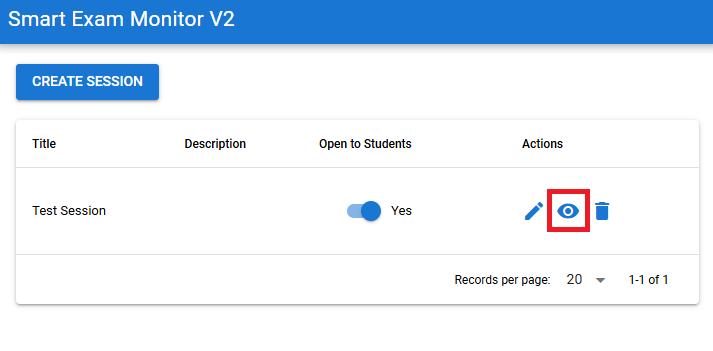
Click on the monitoring button to access the monitoring interface.
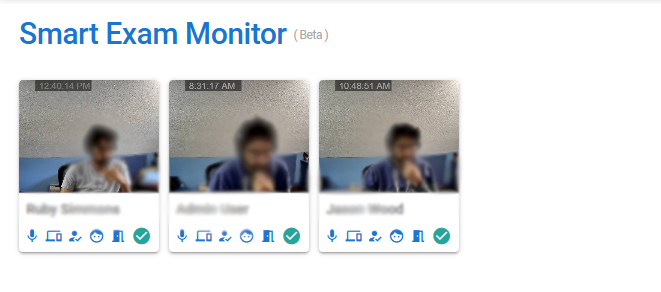
On the monitoring interface, you can view sessions by different students.
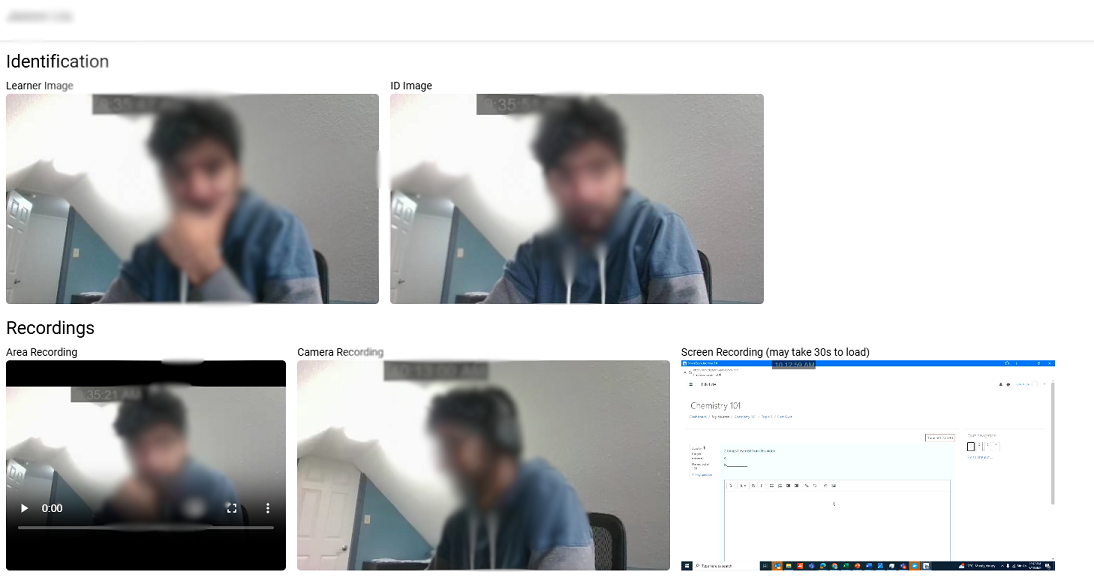
Clicking on a session will open the monitoring interface for that session. At the top of the monitoring interface, you can see the student’s name, student ID, their picture, and video recordings.
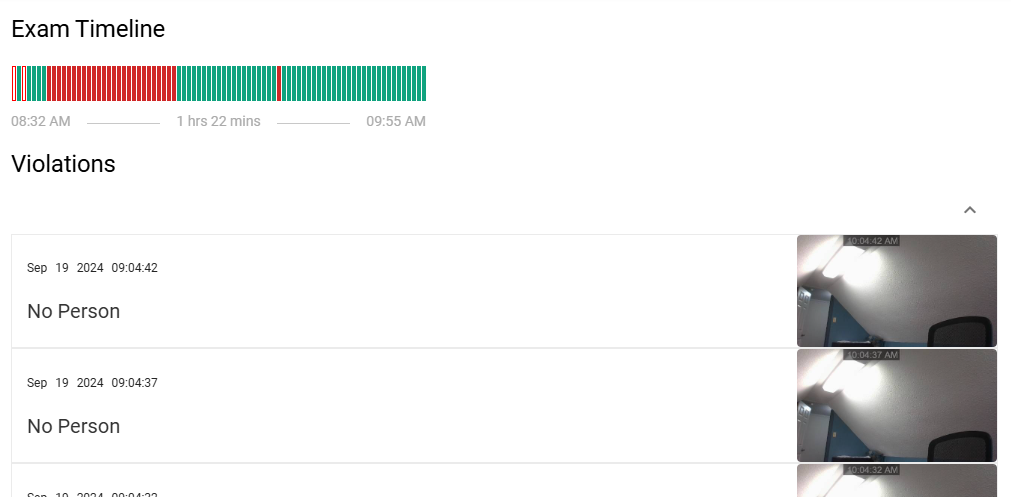
Below the recordings, a timeline is displayed. The timeline shows the events flagged by the system. Clicking on the timeline will bring you to the relevant time in the recording.