Managing students in Assign2
Published on: 2022-10-18 by Edufide
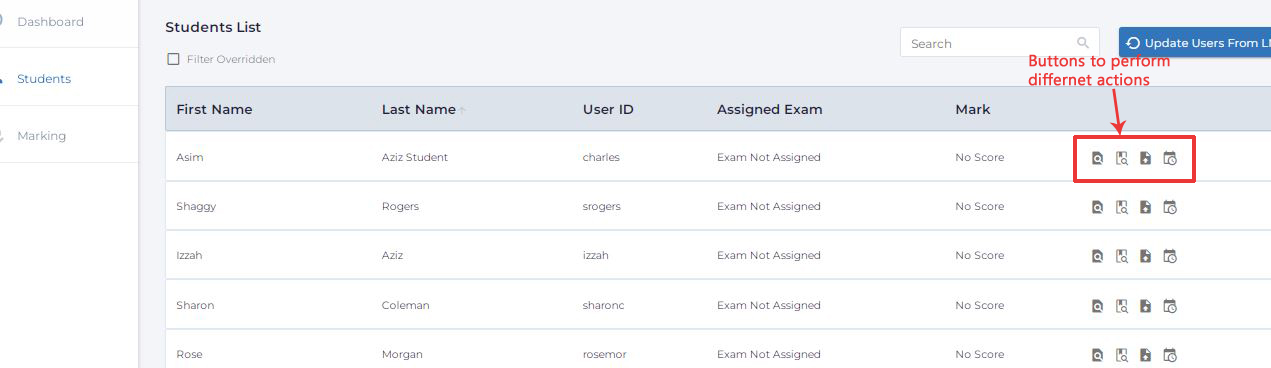
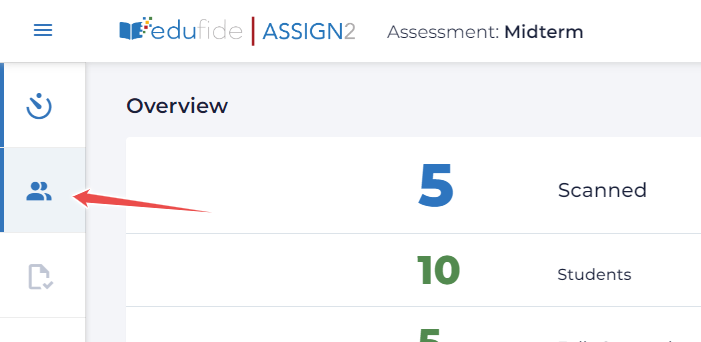
The ‘Students’ tab in Assign2 is your hub for all student management tasks. From here, you can view submission status, grant extensions, and more.
The Student Roster
The ‘Students’ tab lists all students enrolled in your course. The roster is automatically synced from your LMS. For each student, you can see:
- Their name and email.
- The status of their submission (Not Started, In Progress, Submitted, Late).
- Their final score once grading is complete.
- A link to view their specific submission.
Granting Extensions
If you need to give a student an extension, you can do so from the ‘Students’ tab. Find the student in the list and click the ‘Extend’ or ‘Manage’ button next to their name.
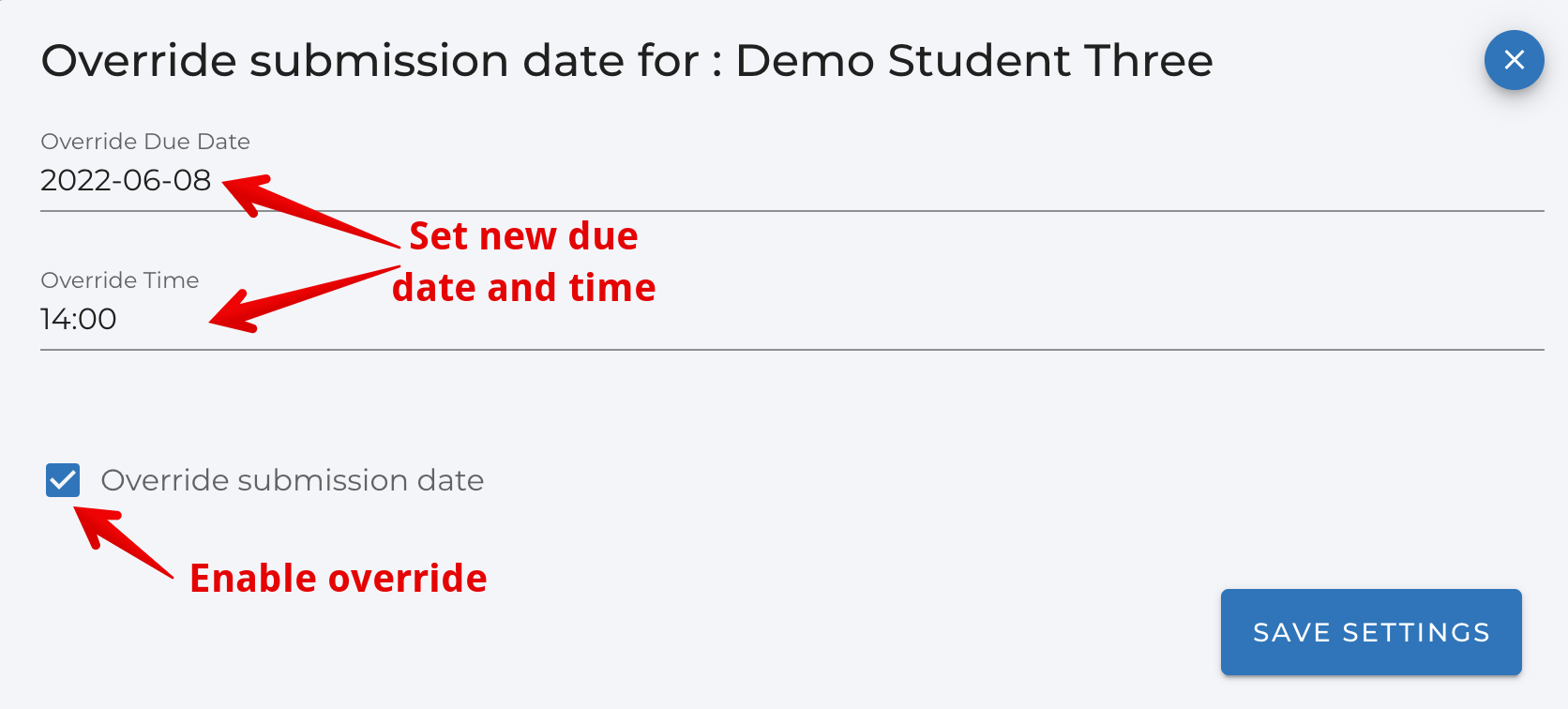
You can set a new due date and time specifically for that student. This will allow them to submit after the original deadline without being marked as late.
Previewing as a Student
Assign2 allows you to preview the assignment exactly as a student would see it. This is useful for double-checking your instructions and questions before releasing the assignment.
You can find a ‘Preview as Student’ option on the assignment dashboard.