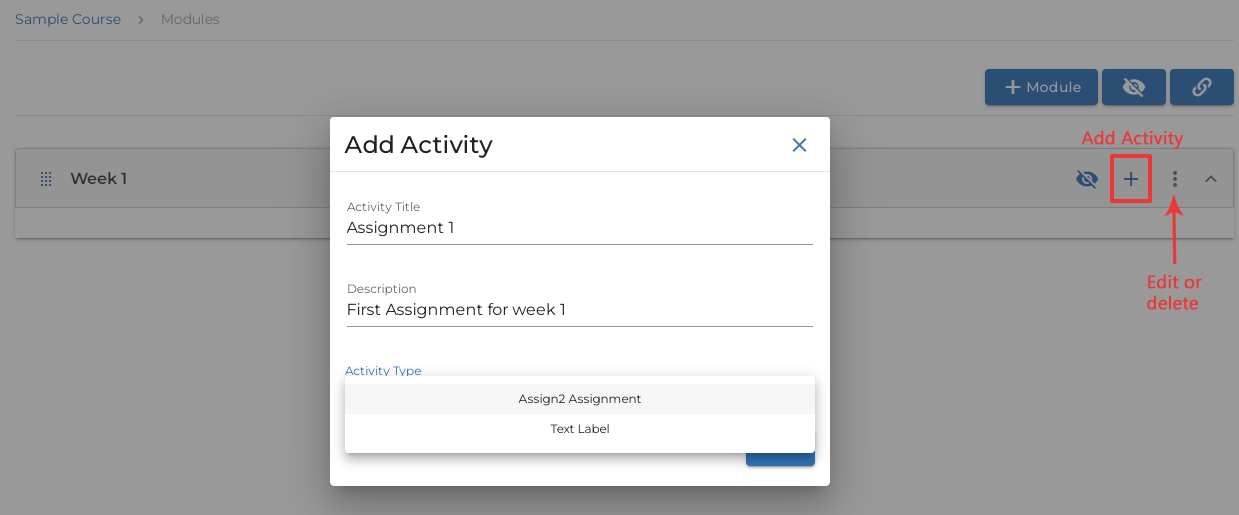
Integrating Assign2 with Moodle
Published on: 2022-10-22 by Edufide
This guide provides the steps for a Moodle administrator to install and configure Assign2 as an external LTI tool, making it available for instructors to use in their courses.
Prerequisites
Before you begin, you will need the following from the Edufide support team:
- Consumer Key and Shared Secret: These are your unique credentials for the LTI integration.
- Launch URL: The endpoint URL for the Assign2 LTI tool.
Installing the LTI Tool
1.
Log in to Moodle as an administrator.
2.
Go to ‘Site administration’ > ‘Plugins’ > ‘Activity modules’ > ‘External tool’ > ‘Manage tools’.
3.
Click on ‘configure a tool manually’.
Configuring the Tool
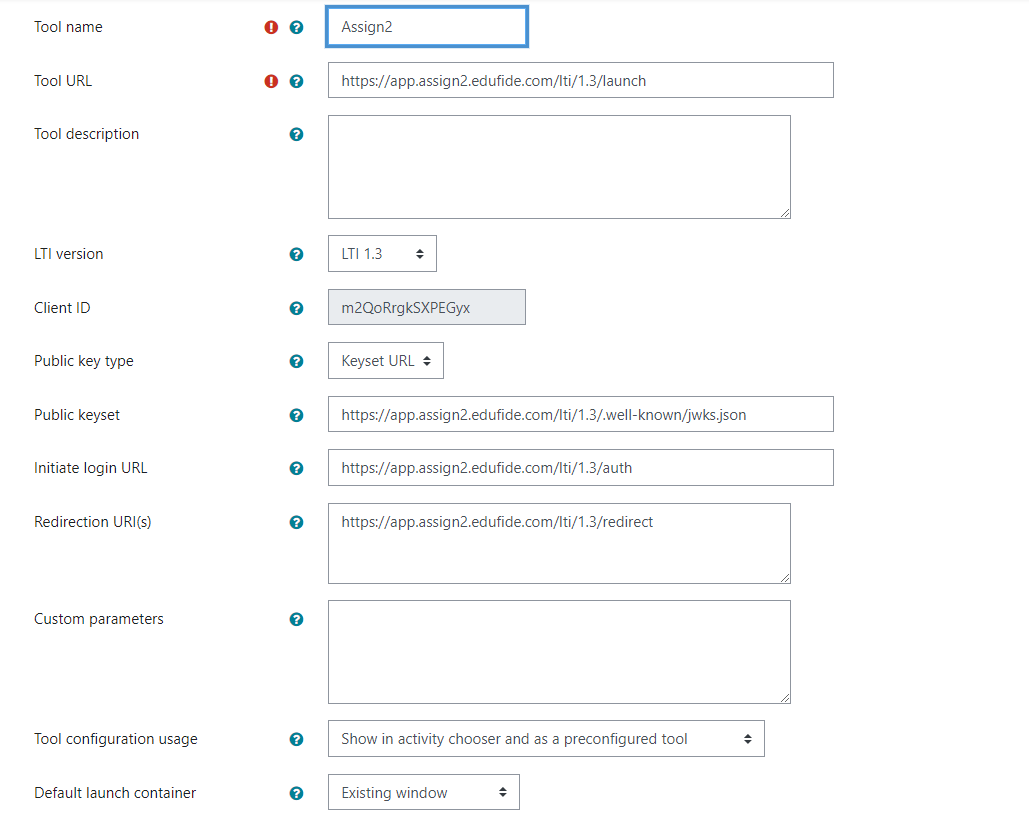
On the ‘External tool configuration’ page, enter the following details:
- Tool Name: Assign2
- Tool URL: [Your provided Launch URL]
- Consumer Key: [Your provided Consumer Key]
- Shared Secret: [Your provided Shared Secret]
- Default launch container: Embed, without blocks (recommended)
- Privacy: Ensure ‘Share launcher’s name with tool’ and ‘Share launcher’s email with tool’ are selected.
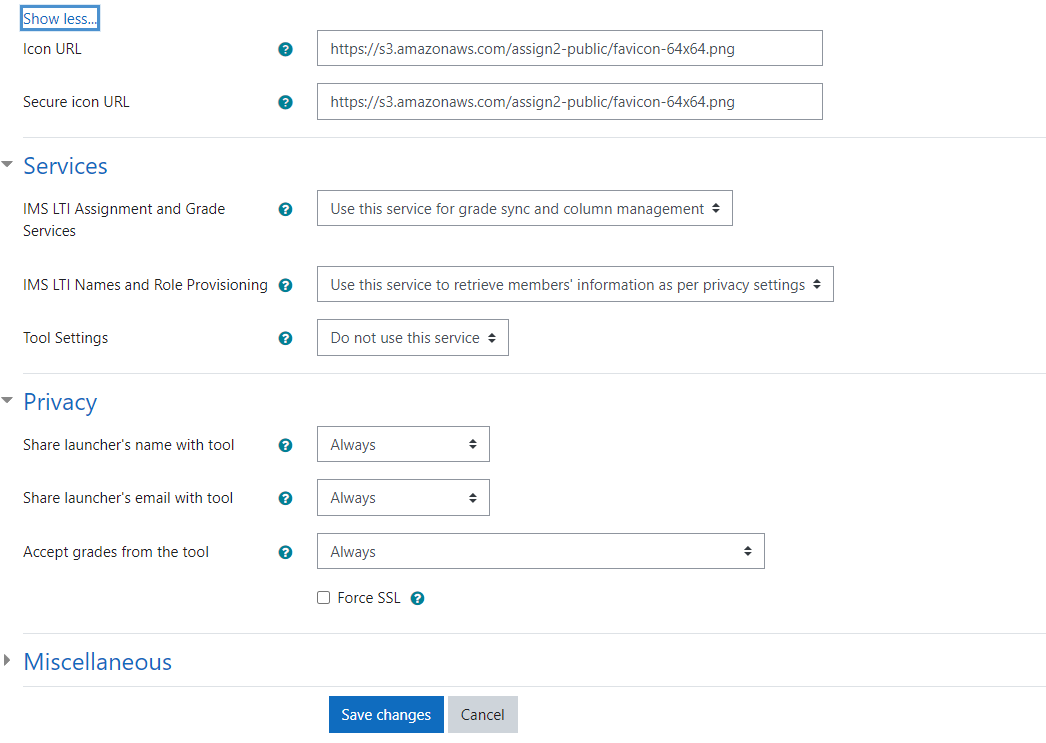
Click ‘Save changes’. The tool is now available for instructors to add to their courses.
Testing the Integration
To ensure the integration is working correctly:
1.
Go to a course and turn editing on.
2.
Click ‘Add an activity or resource’ and select ‘External tool’.
3.
Give the activity a name, and from the ‘Preconfigured tool’ dropdown, select ‘Assign2’.
4.
Save and display the activity. It should launch the Assign2 interface within Moodle.