Creating and Grading Paper Exams Using AnyExam in Assign2
Published on: 2023-06-01 by Edufide
This article describes how instructors can use the AnyExam assessment type to grade existing paper-based exams online. Unlike other in-person exam types, AnyExam does not require you to generate exam papers from Assign2. Instead, it uses AI to process scans of any exam you provide, as long as each student’s work is separated by a cover page.
Contents:
Creating an AnyExam Assessment
The first step is to define the structure of your exam within Assign2 so the system knows how to organize the scanned pages for grading.
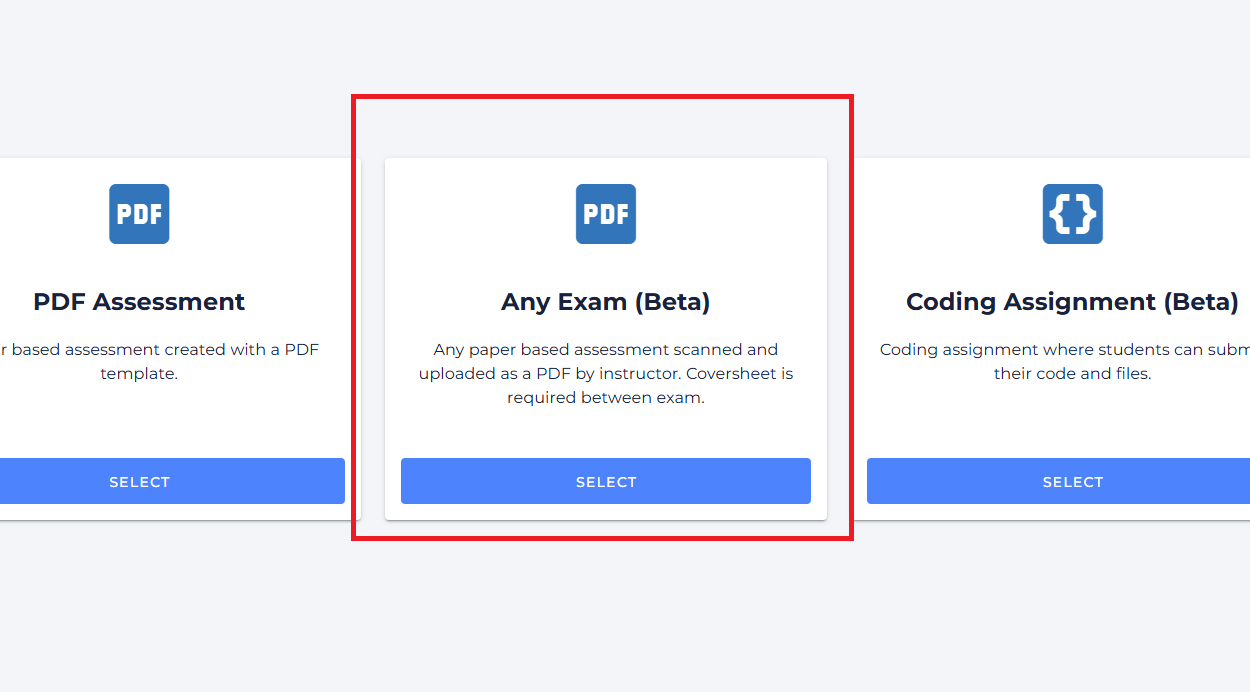
Begin by adding a new Assign2 activity to your course in your LMS. Ensure the total grade points match your exam’s total score. Once added, click the tool link and select AnyExam as the assessment type.
You will be taken to the “Question Setup” screen. Here, you will manually define each question from your paper exam.
- Enter the question text in the “Question text” field.
- Enter the point value for the question in the “Marks” field.
- Click the Plus (+) icon to add more questions and the Close (X) icon to remove them.
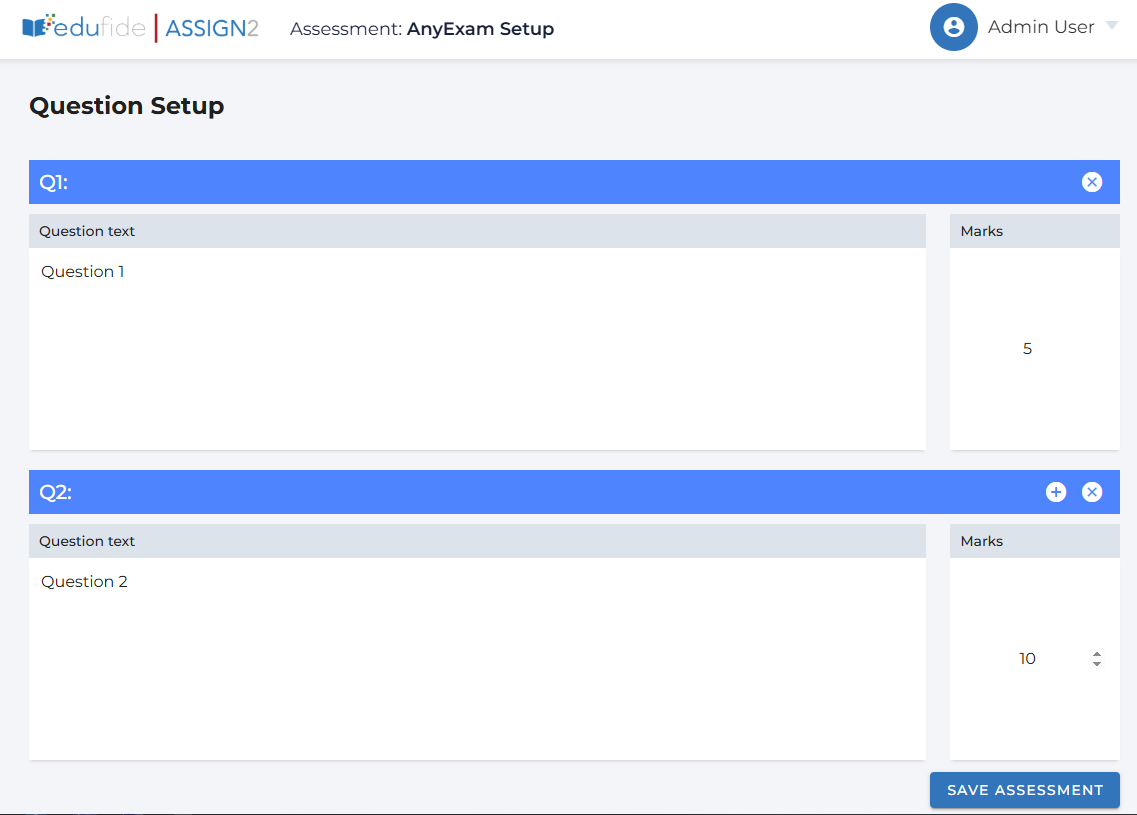
Once all questions and marks are defined, click Save Assessment to finalize the setup.
Preparing and Scanning Student Exams
After students have completed the exam on paper, you will need to scan them for uploading. The AI-powered processing relies on a specific format.
The Cover Page Requirement
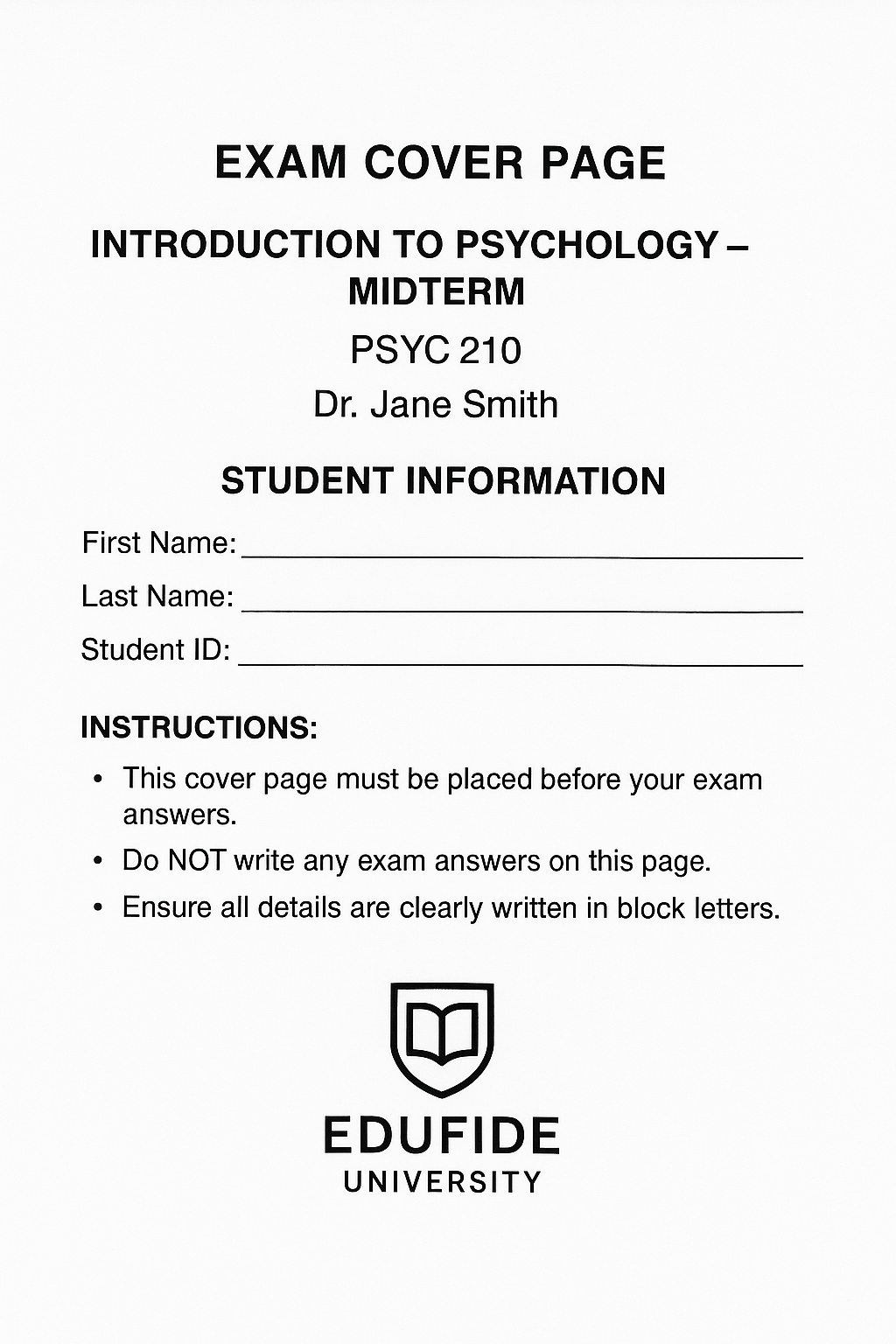
This is the most critical step. To allow the AI to separate one student’s exam from another within a single PDF, each student’s exam must be preceded by a dedicated cover page.
- The cover page must contain the student’s identifying information, such as First Name, Last Name, and Student ID. Including the exam title is also recommended.
- The cover page must not contain any questions or student answers. The system uses this clean separation to identify the start of a new exam.
Scanning Guidelines
- Scan multiple exams (each with its cover page) into a single PDF file for efficient uploading.
- Scanning should be done at a resolution of 200dpi or higher on a darker setting to ensure all text is legible.
- Ensure pages are scanned in portrait orientation.
Uploading and Processing Scans
Once your scanned PDF file is ready, you can upload it to Assign2 for processing.
From the assignment dashboard, open the left navigation menu and select Upload exams.
Drag and drop your scanned PDF file into the upload area or click to browse your computer. You can repeat this process for multiple scanned files.

Once uploaded, the system will begin processing the file. The AI will detect each cover page to identify individual students and then match the subsequent answer pages to the questions you defined during setup.
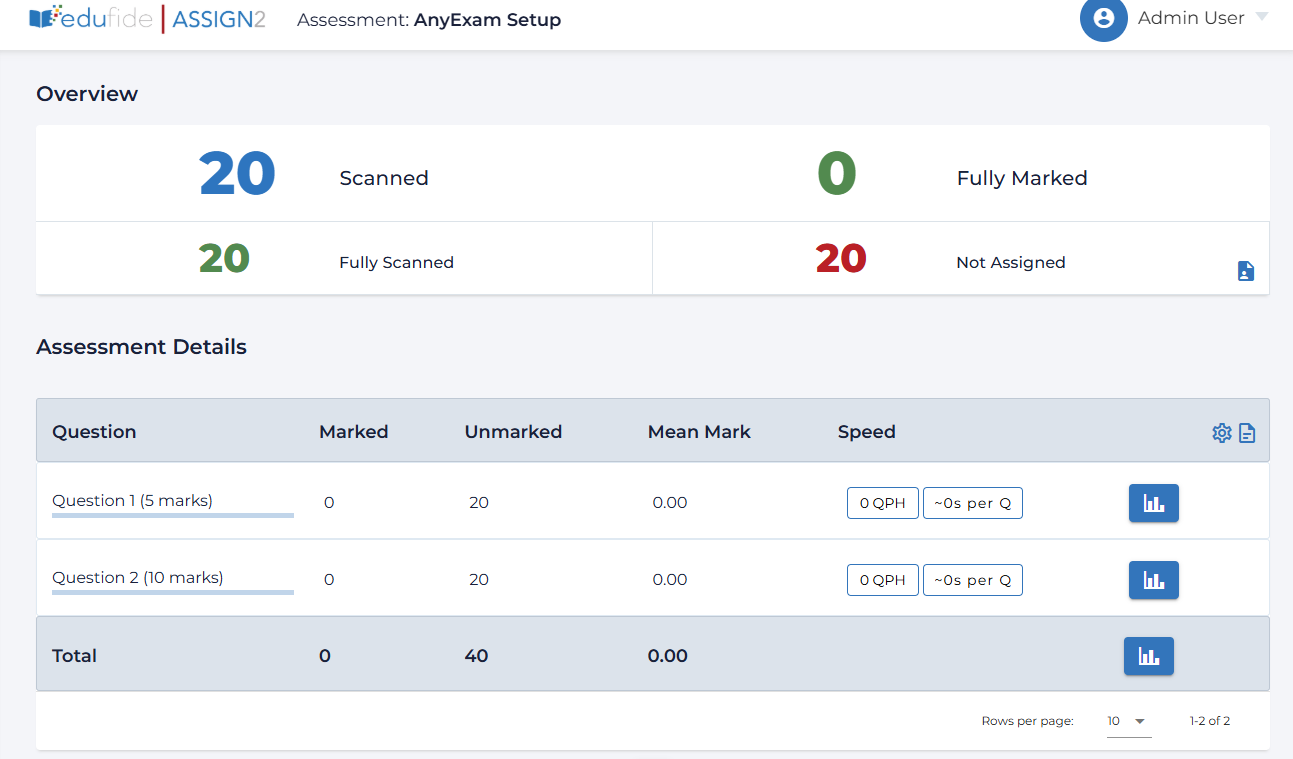
You can monitor the progress on the main dashboard. Successfully processed exams will appear under the “Fully Scanned” count.
Managing and Marking Exams
After the AI has processed the scans, you can begin grading. The dashboard provides an overview of the status of all exams.
Handling Processing Issues
Sometimes the AI may need assistance. The dashboard will show counts for any exams that require manual review:
- Not Assigned: This occurs if the AI could not clearly read the student information on a cover page. Click this link to view the scanned cover page and manually assign it to the correct student from your class roster.
- Partially Scanned: This indicates the system could not confidently sort all pages for an exam. You can click here to review the problematic pages and resolve any issues.
Marking Exams
To begin grading, navigate to the Exam Marking tab from the left navigation menu. The grading interface and workflows are the same as for other paper-based assessments in Assign2, allowing for efficient marking and feedback.